

You send a guest their online check-in link, your guidebook or a payment link through Booking.com, and they receive [Link was removed] instead. Nothing is wrong with your link. Booking.com's anti-phishing filter strips every link whose domain you haven't approved in the extranet. Here's why it happens and how to fix it in about five minutes.
Why Booking.com removes links
- Booking.com has messaging security settings in the extranet. Once they're active, any link you haven't added to your approved list is removed from the message, and the guest sees [Link was removed] (or [Enlace eliminado], [Link rimosso], etc., depending on their language).
- Shortened links are always blocked, even if you approve them: bit.ly, tinyurl,
maps.app.goo.gland similar redirect links never get through. - The same settings control email addresses. As soon as you add one approved address, emails from any address that isn't on the list stop reaching your Booking.com guests.
- Two switches, "Block all links" and "Block all email communication", override everything: when they're on, even approved links and addresses are blocked.
Which links you need to approve
Approve the domain of every website you send to guests on purpose. The domain is the part between https:// and the next /. For https://checkin.example.com/abc123, the domain is checkin.example.com.
| What you send | What to approve |
|---|---|
| Online check-in or guest registration | The domain of your check-in tool or your PMS's check-in page |
| Guest app or digital guidebook | The domain of your guidebook tool |
| Payment, deposit or upsell links | The domain that appears in the link you send |
| Your own website or booking engine | Your website's domain |
| Directions | Use a full Google Maps link (google.com/maps/...) and approve google.com, instead of a maps.app.goo.gl short link |
If you're not sure which domain a tool uses, send yourself one of its links and look at the address it starts with. Many tools also list the domains to approve in their help centre.
Step by step
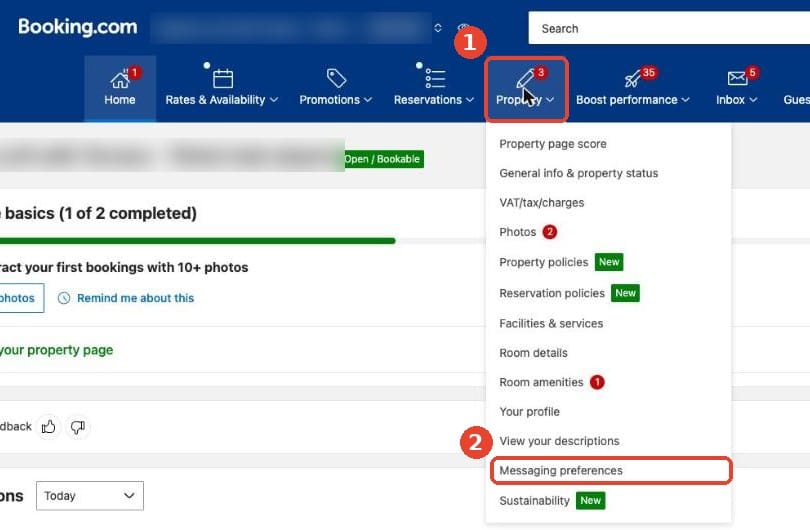
Sign in to the Booking.com extranet at admin.booking.com with an account that has admin rights, then follow the numbers in the screenshots.
- Open Property and click Messaging preferences (1–2).
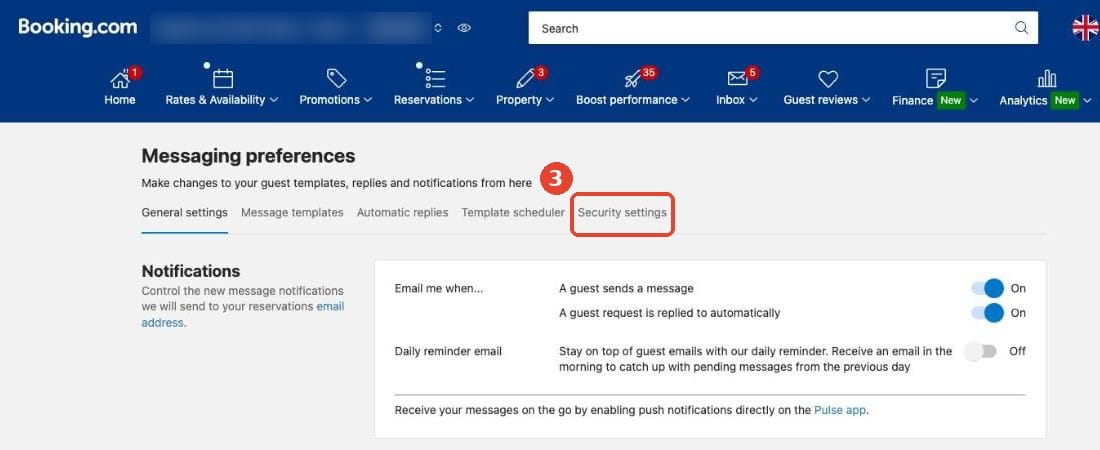
- Open the Security settings tab (3). Booking.com texts you a verification code: enter it. If you land back on the homepage afterwards, repeat step 1.
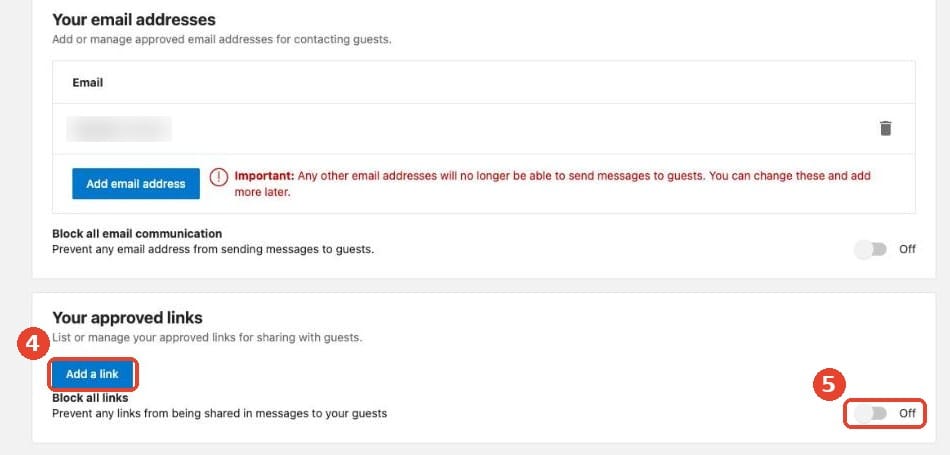
- Under Your approved links, click Add a link (4). Check that Block all links is Off (5), or even approved links are removed.
- Type one domain per field: no
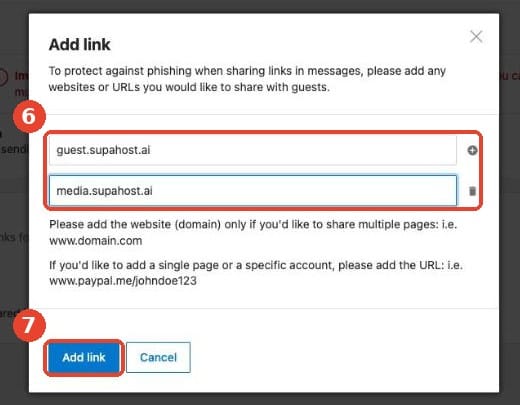
https://, nothing after a slash. Click + for another field, then click Add link to save (6–7).
- If you email guests directly (from your PMS, check-in tool or own inbox), add those sender addresses with Add email address on the same page. As soon as one address is listed, every other sender is blocked.
Managing several properties (group account)
- Sign in to your group account on the extranet.
- On the homepage, select one of your properties.
- Follow the steps above to add the domains.
- Click Apply to all properties and confirm in the pop-up.
Settings are saved per property. If you don't use "Apply to all properties", repeat the steps for each one. When only some properties lose their links, this is usually why.
Common mistakes
- "Block all links" is on. Turn it off, or your approved links are blocked too.
- Full URL instead of domain. Enter
checkin.example.com, nothttps://checkin.example.com/abc123. - Missing
wwwvariant. If a tool sends links both with and withoutwww., add both versions. - Short links. Replace them with the full address. Booking.com blocks them whatever you approve.
- Email list half set up. After you add one sender address, every other sender is blocked. Add all the addresses or domains you email guests from.
Check that it works
- Send a test message containing one of your links to a Booking.com reservation.
- Open that conversation in the extranet and check the link is there and clickable.
- Booking.com doesn't restore a link it already removed. If you sent it before approving the domain, send it again.
Using Supahost?
Approve these two domains and every Supahost link reaches your Booking.com guests:
guest.supahost.ai: guest portal, online check-in, guidebook, payments for extras and upsellsmedia.supahost.ai: photos, PDFs and other files sent in messages
You don't need to do anything about short links. For Booking.com reservations, Supahost automatically replaces every short link (including Google Maps short links) with its full address before sending. Your inbox keeps showing the short link, and both open the same page. More in the Supahost docs.
FAQ
Does this affect Airbnb, Vrbo or WhatsApp? No. It's a Booking.com setting and only applies to Booking.com messages.
Can I approve bit.ly so my short links work? No. Booking.com blocks shortened links even when they're on the approved list.
Do I need to approve my payment provider? Only if its domain appears in the link you send. If your tool sends its own link that then opens the checkout, approving your tool's domain is enough.
I approved the domain and links are still removed. Check the spelling, check you added it on the property the reservation belongs to, and check "Block all links" is off. Then resend the message.